🔐 API Key Management
Eye provides each organisation with a unique API key used to integrate Eye by Proctorme into your assessment platform.
This page explains where to find your API key, how it is used, and how domain restrictions protect your integration by default.
Organisation Dashboard Overview
When you register an organisation on Eye, you gain access to an admin dashboard where you can:
- Create and manage assessments
- View candidates and monitoring sessions
- Review candidate flags and violations
- Track billing, credits, and expenses
- Configure integrations and API access
The dashboard gives you full visibility into your organisation’s proctoring activity.
Where to Find Your API Key
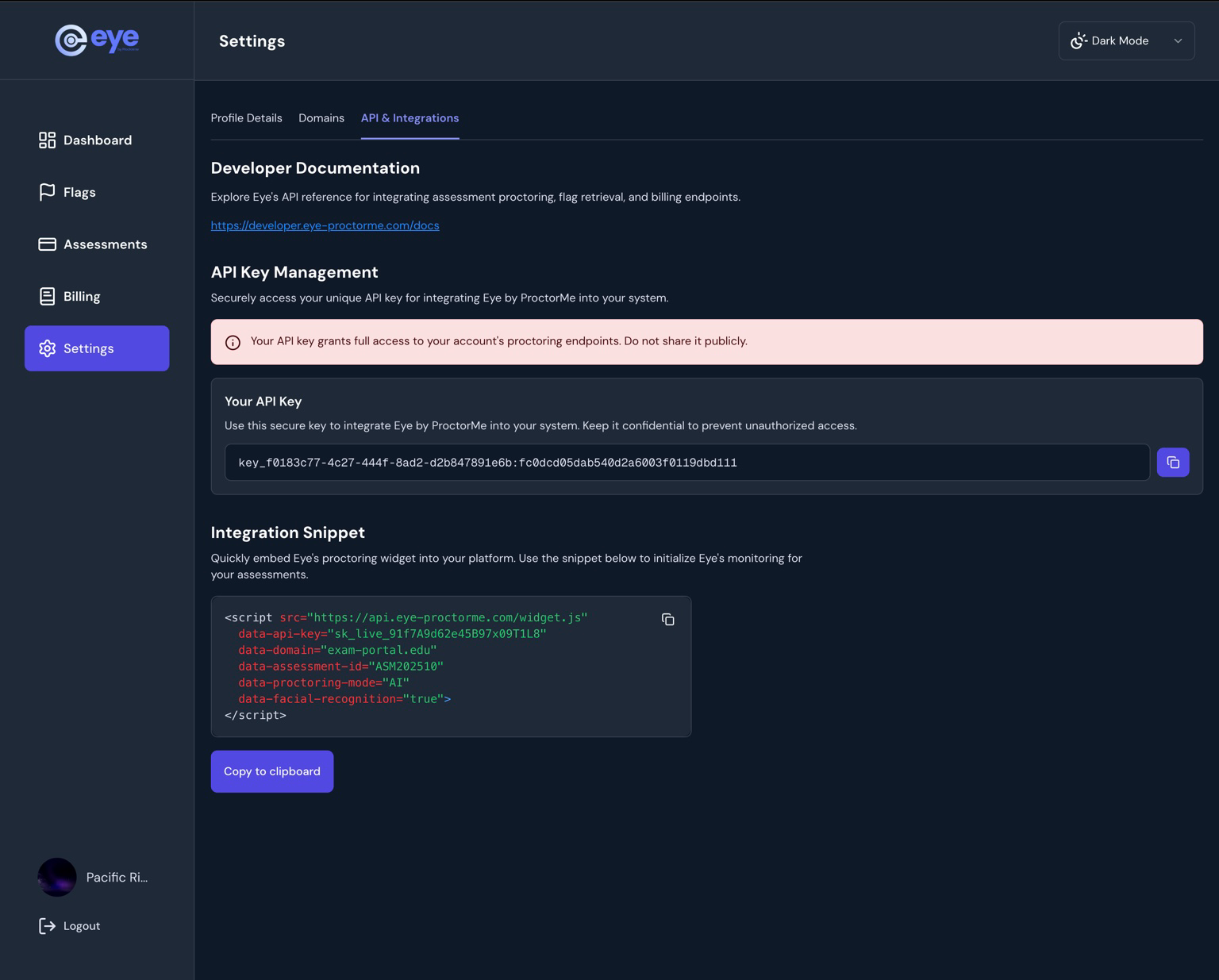
Your API key is available inside the Settings → API & Integrations section of the dashboard.
Steps to access your API key
- Log in to your Eye Admin Dashboard
- Click Settings in the left sidebar
- Open the API & Integrations tab
- Locate the API Key Management section
- Click the copy icon to copy your API key
Organisation-wide Key
The API key applies to all assessments created under your organisation.
Dashboard Reference
Below is an example of the API & Integrations screen where your API key and integration snippet are displayed.
What the API Key Is Used For
Your API key allows Eye to:
- Authenticate your organisation
- Initialize the proctoring widget
- Link candidates and assessments correctly
- Create flags and monitoring events
- Attribute usage to billing and credits
If the API key is missing or invalid, the widget will not initialize.
Domain Restriction (Built-In Protection)
Eye enforces domain-level restriction on every API key.
Only domains explicitly registered in your organisation’s dashboard are allowed to use your API key.
How it works
- Each API key is bound to approved domains
- Requests originating from unregistered domains are automatically rejected
- This applies to both:
- Widget initialization
- API and webhook activity
Automatic Protection
Even if your API key is exposed, it cannot be used from a domain that is not registered.
Managing Allowed Domains
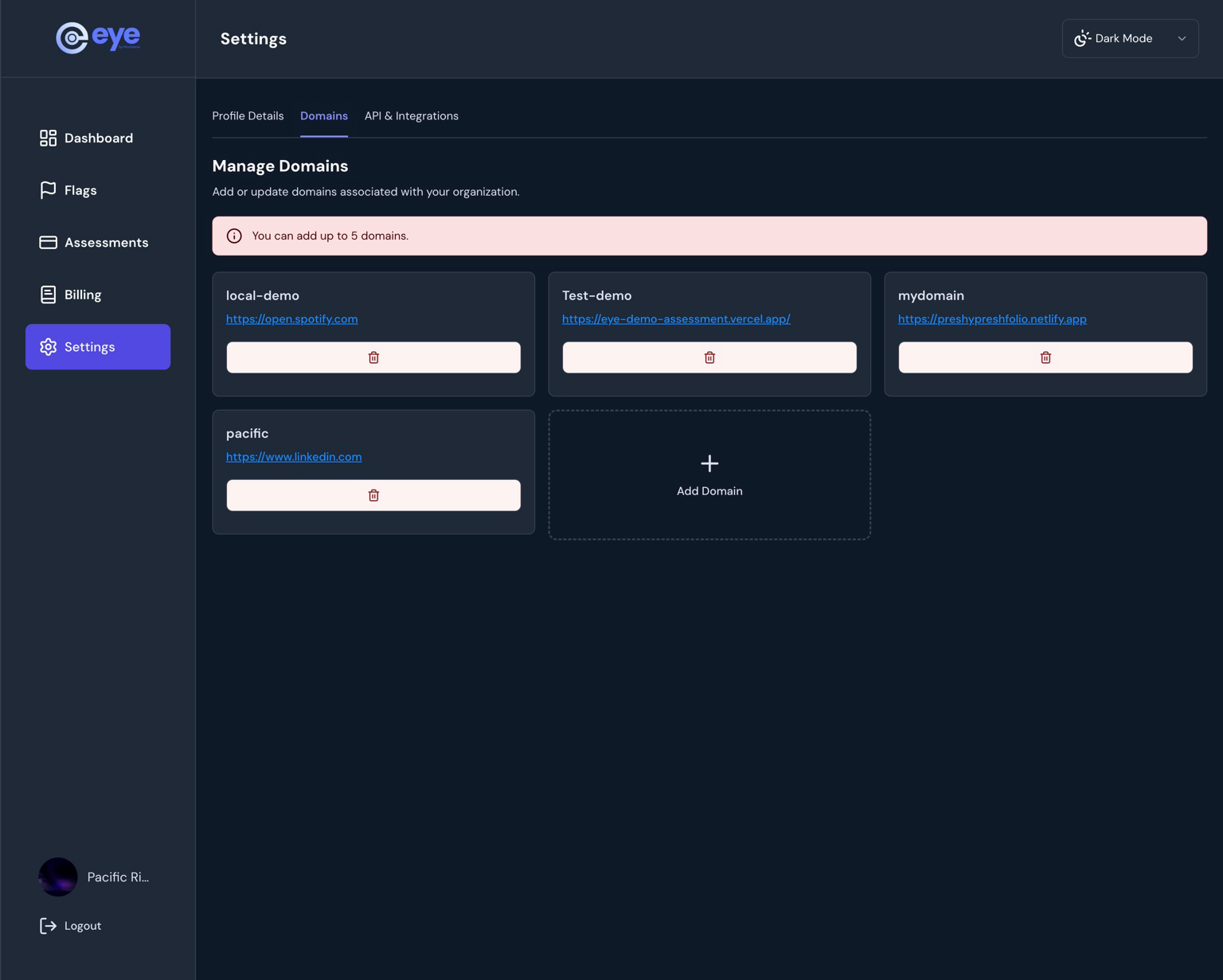
You can manage your organisation’s allowed domains from:
Settings → Domains
- Add up to 5 approved domains
- Remove domains at any time
- Changes apply immediately
Typical Use Cases
exam.yourdomain.comfor productionstaging.yourdomain.comfor testinglocalhostfor local development
Using the API Key in the Widget
You can pass your API key when initializing the widget programmatically:
const config = {
  apiKey: "YOUR_API_KEY",
  assessmentId: "assessment123",
  candidateId: "candidate456",
  examDuration: 1800,
};
Note
The widget will only start if the current domain matches an approved domain.
Rotating or Revoking an API Key
If you need to rotate or revoke an API key:
- Contact Eye Support
- A new API key will be issued
- Update your integrations with the new key
Info
Domain restrictions continue to apply automatically to newly issued keys.